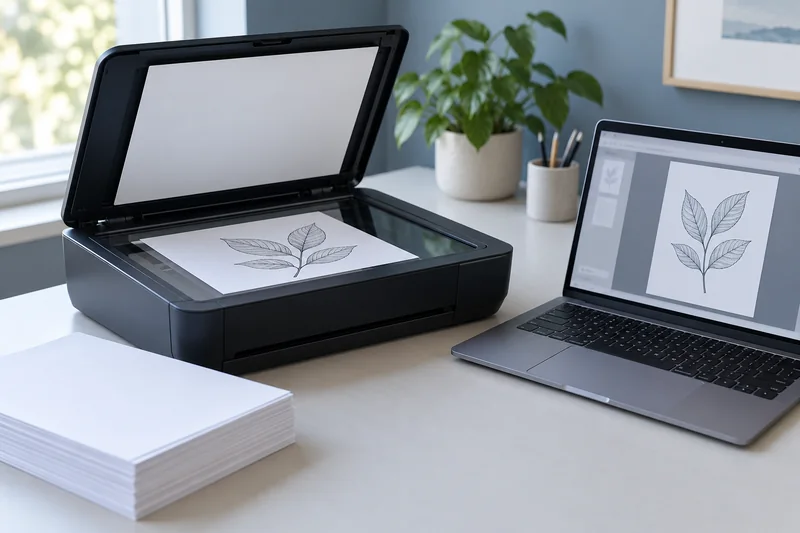
Short answer: An automatic document feeder does not automatically scan both sides. Automatic print duplex is a separate feature. Confirm two-sided scanning for the exact model, app and connection you intend to use.
On this page
Apply the guide to your own configuration
Record how many physical sheets and expected page images enter the scan task. For a mixed single- and double-sided stack, calculate the expected output from the content rather than simply doubling every sheet.

For a more specific worked case, read Check page order and both sides in a multi-page scan. It includes an original diagram, a decision table and an editable record. Download its worksheet or open the print-job workbook.
Review note — October 21, 2026: Added this configuration check and the linked practical resource. Earlier documentary guidance remains below; no physical test has been added.
Research guide · Sources checked October 18, 2026. The procedures and examples below are planning aids, not results from a hands-on product test.
Read the specification as three separate questions
| Feature | Question to answer |
|---|---|
| Automatic print duplex | Can the printer print both sides without manual reloading? |
| ADF | Can a stack of supported originals be fed for scanning? |
| Automatic duplex scanning | Can both sides be captured automatically? |
| Reversing versus single-pass | Is the sheet turned over, or are both sides captured in one pass? |
| Software output | Can your app save and order the captured pages as required? |
A multifunction printer can have automatic two-sided printing and a one-sided feeder. A listing that says only “duplex” is therefore incomplete for a scanning purchase. Ask for the scanning specification or manual section rather than inferring it from the print feature.
Brother’s instructions for selected models show two-sided scanning through the ADF and a binding-edge choice in supported software. The instructions cover named models, including MFC-L2750DW and MFC-L3770CDW; they are not proof that every Brother ADF has that feature.
Write down the scan job before choosing hardware
Record the original count, whether the backs contain information, sheet dimensions, paper condition and required output. A batch of loose, clean office pages is different from a bound booklet, fragile receipt or laminated card. Check the feeder’s allowed originals and size range, and follow the model’s restrictions. Use a flatbed or another approved route for originals the ADF does not accept.
Keep scan speed and feeder capacity in their stated units. A specification can count images, pages or sheets under a particular resolution and mode. Do not compare those figures as if they all measured a completed searchable PDF. OCR and saving can add steps outside the feeder itself.
Verify a small two-sided sample
- Prepare a few ordinary supported sheets with clear front/back labels and page numbers.
- Load them in the orientation described by the exact manual.
- Choose the documented two-sided scan mode and appropriate long-edge or short-edge setting.
- Inspect every page for order, missing backs, rotation and cropping.
- Save the file, reopen it and confirm the final PDF rather than trusting the preview alone.
For a hypothetical five-sheet document with content on every side, expect ten captured page images before any deliberate blank-page removal. A five-page output is a reason to investigate the selected mode, not proof the device scanned both sides. If blank-page removal is enabled, test that it has not removed a faint but meaningful page.
Plan a manual fallback honestly
A one-sided ADF may require separate passes and a supported software workflow to interleave pages. That process needs an explicit page-order check. Do not promise automatic duplex scanning because a PDF editor can rearrange pages afterward. If this is a daily task, compare the extra handling time with a model that documents the required automatic mode.
Use the volume planner to distinguish sheets from printed sides when describing your workload; scanning requirements still need their own record. Continue with ADF versus flatbed and searchable PDF verification. Before purchase, use the documented compatibility hub to keep confirmed features separate from unknown ones.
Sources and scope
- Brother US: scan both sides of a document — Model-specific ADF and software instructions; see the supported-model list.
Continue with your next check
Build on what you just learned
Your next useful step.
Capture every page, then verify the result.
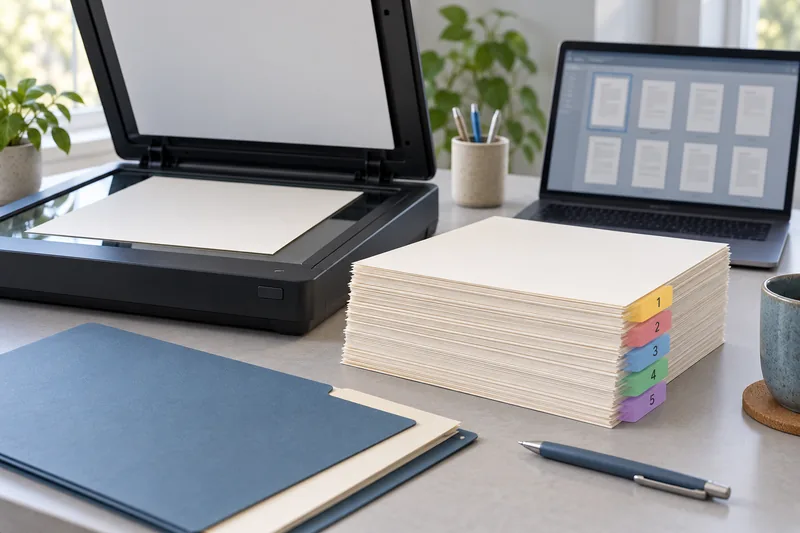
Mopria printing and scanning: verify the exact function before buying
Check printing and scanning as separate functions in the certified-product information and the manufacturer’s current support material.
Read the guide →Scan to a searchable PDF: capture, OCR and verification
A searchable PDF needs image capture plus text recognition. A scanner producing a PDF does not necessarily run OCR, and a document that looks…
Read the guide →