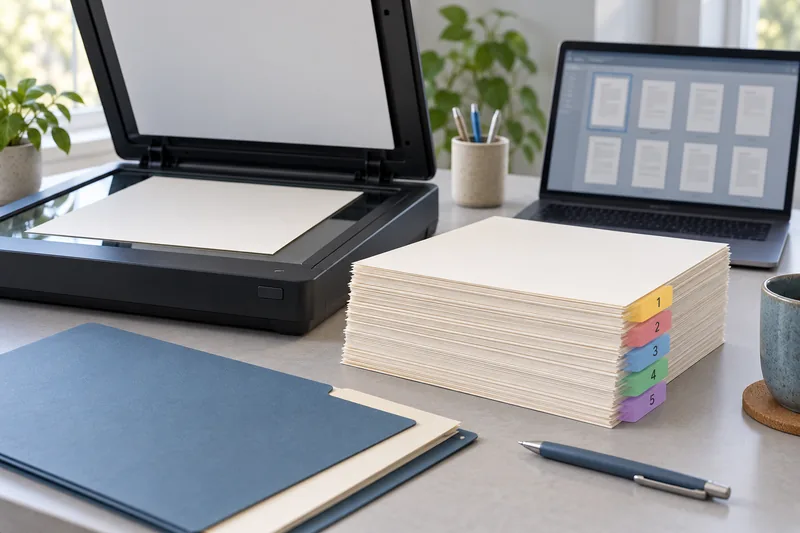
Use a real redaction function, apply the redactions and inspect the saved sharing copy. I would keep the original privately and review hidden information as a separate step. Drawing a dark shape over text or cropping the visible page does not establish that the underlying content has been removed.
On this page
Our recommendation
I would use a documented redaction workflow and a final-file review. If the tool only draws shapes or hides page areas, choose a tool with explicit content removal rather than treating appearance as proof.
Remove content rather than hide it
Adobe’s Acrobat Pro guidance distinguishes marking items for redaction from applying the removal, and offers sanitisation of hidden information. Follow the current instructions for the exact application. A document that looks blank in one viewer can still contain text, annotations or other information underneath a visual overlay.
For scans, consider both the page image and any OCR text layer. A redaction must address the information in the saved output, not only what your current zoom level shows. Work on a copy and choose a clear filename that distinguishes the intended sharing version.
Inspect the final saved file
Close and reopen the saved copy, search for a distinctive removed term and try selecting or copying around the affected area. Review properties, comments, attachments and other hidden-information categories through the application’s supported tools. These are useful checks, not a guarantee against every possible disclosure.
Check filenames, folder names and the context of the remaining page too. Removing a visible email address may not remove the same address from a comment or embedded attachment. For sensitive organisational material, use the approved review process rather than relying on a quick home test.
A practical sharing check
A scanned letter contains an address in the image and in its OCR layer. Create a separate copy, apply supported redaction to the relevant content, review hidden information and save. Reopen that exact copy from the destination folder and verify that a search for the removed address does not find it before sharing.
Before you act
- Keep the original private and work on a copy.
- Apply the removal; do not stop at marking.
- Review OCR, hidden information and the saved destination file.
Use the Print-job workbook to apply the guide to your own setup.
Keep exploring
- Scan to a searchable PDF: capture, OCR and verification
- Verify an OCR PDF before relying on search or copied text
Sources and research notes
Research checked on 21 October 2026. Product specifications are manufacturer statements; examples and buying judgements are our analysis. No hands-on product test is implied.
Build on what you just learned
Your next useful step.
Capture every page, then verify the result.
Mopria printing and scanning: verify the exact function before buying
Check printing and scanning as separate functions in the certified-product information and the manufacturer’s current support material.
Read the guide →
ADF vs duplex ADF: separate printing from two-sided scanning
Short answer: An automatic document feeder does not automatically scan both sides. Automatic print duplex is a separate feature. Confirm two-sided scanning for the…
Read the guide →