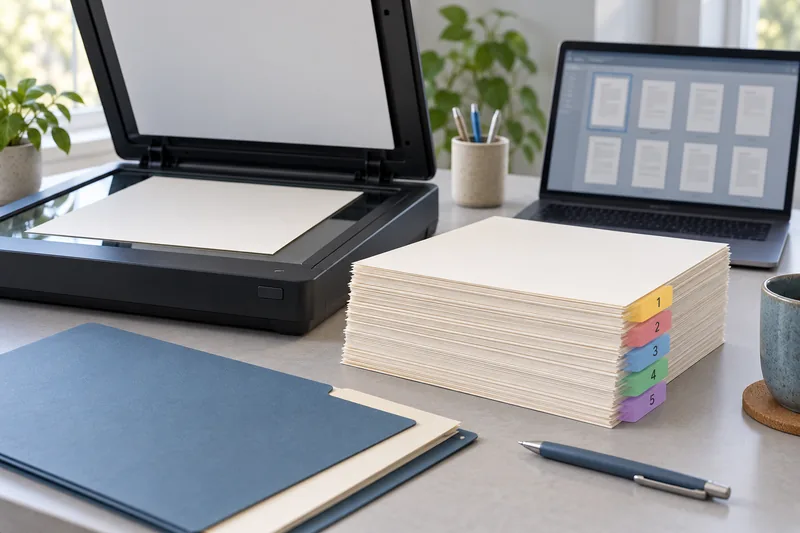
Do not build a new scanning routine around Microsoft Lens in late 2026. I would first recover and verify existing scans, then choose a replacement based on local-file access, OCR, page order and any cloud requirements. A new app should be tested with a small complete document before moving the archive.
On this page
Our recommendation
I would choose the simplest supported workflow that gives reliable access to the final files. For scanner-to-desktop jobs, I would test NAPS2; for account-based mobile scanning, evaluate the official alternative against the actual export requirement.
The retirement has already happened
Microsoft says Lens retirement began on 9 January 2026, support ended after 9 February and new scanning remained available only until 9 March 2026. Its support page recommends OneDrive as an alternative and describes conditions for accessing past scans. Check the official guidance before uninstalling an app that still contains files you need.
Do not confuse the ability to view an old scan with a supported way to create new ones. Make an inventory of what is stored locally, in an account and in exported folders. Open representative files from their destination rather than assuming an export operation preserved everything.
Choose by the destination you need
If cloud storage suits the task, test the account-based alternative and its export route. If you need a local desktop workflow with an existing scanner, a tool such as NAPS2 is worth evaluating for capture and searchable PDFs. It is a different workflow, not a phone-camera replacement in every situation.
For a phone app, test offline access, multi-page ordering, export format and OCR using harmless pages. Review the current privacy and storage settings before scanning personal records. Do not judge the replacement only by how attractive the first enhanced page looks.
A migration acceptance document
Use a three-page document with page numbers, a rotated page and a line of small text. Capture it, reorder it if needed, export to the intended location and reopen it without relying on the app’s recent-files view. Search a distinctive phrase if OCR is required. Keep the old files until this route is verified.
Before you act
- Verify and export existing scans before uninstalling.
- Test the final storage location and offline access.
- Check OCR and page order, not only image enhancement.
Use the Print-job workbook to apply the guide to your own setup.
Keep exploring
- Scan to a searchable PDF: capture, OCR and verification
- Verify an OCR PDF before relying on search or copied text
Sources and research notes
Research checked on 21 October 2026. Product specifications are manufacturer statements; examples and buying judgements are our analysis. No hands-on product test is implied.
Build on what you just learned
Your next useful step.
Capture every page, then verify the result.
Mopria printing and scanning: verify the exact function before buying
Check printing and scanning as separate functions in the certified-product information and the manufacturer’s current support material.
Read the guide →
ADF vs duplex ADF: separate printing from two-sided scanning
Short answer: An automatic document feeder does not automatically scan both sides. Automatic print duplex is a separate feature. Confirm two-sided scanning for the…
Read the guide →