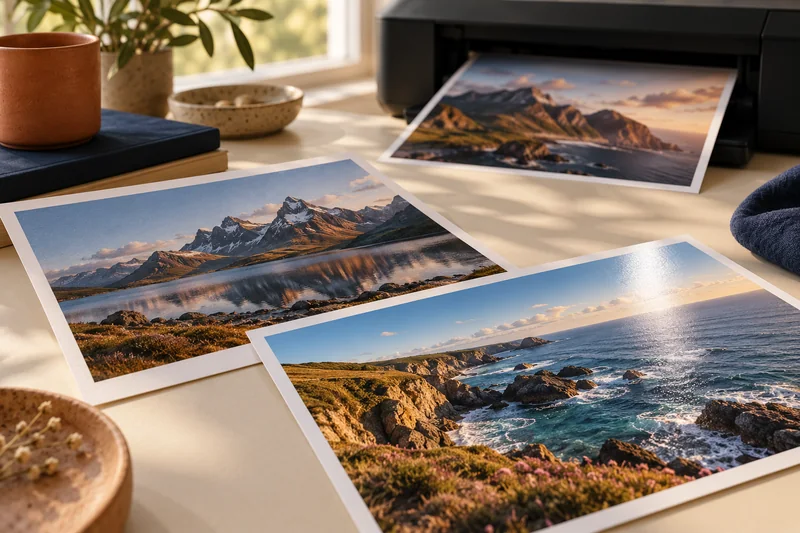
Answer: First match the image ratio to the intended print shape. Then check the printer’s borderless behavior, which can enlarge the image further and remove edge content.
On this page
Print Use Lab editorial project · Updated October 21, 2026 · Original decision framework and illustrative example. No physical product measurement or hands-on benchmark is claimed.
Why the distinction matters
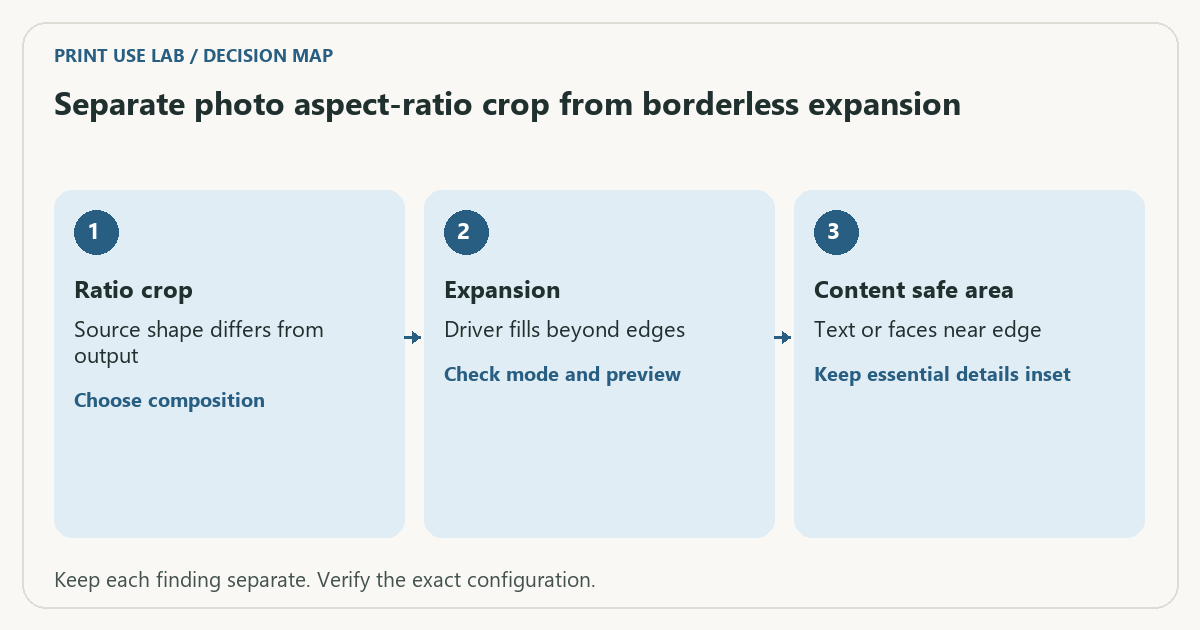
Two crops can happen in one workflow. The application may crop a photograph to fill a paper ratio, and the driver may enlarge the result to avoid white edges. That is why an image that looks complete in one preview can lose a caption near the edge. Keep important details within a deliberate safe area and inspect the printer’s supported borderless media combinations.
A practical sequence
- Compare image width-to-height ratio with the paper or finished crop.
- Choose whether to crop to fill or keep the full image with borders.
- Check the selected printer mode’s expansion controls and supported stock.
- Print one proof with visible edge references before committing valuable media.
Decision record
| Check | What it means | What to verify |
|---|---|---|
| Ratio crop | Source shape differs from output | Choose composition |
| Expansion | Driver fills beyond edges | Check mode and preview |
| Content safe area | Text or faces near edge | Keep essential details inset |
Worked example
A 3:2 photograph filling an 8 × 10 inch print must be cropped because 1.5 and 1.25 are different ratios. A borderless mode can then remove more at the edges. Increasing PPI or changing GSM does not resolve the composition mismatch.
Verify the result
Keep a bordered proof when the full frame matters. If trimming is appropriate, design for the supported printable area and intended finishing. Do not assume every paper type or size permits borderless output.
Download the editable CSV worksheet · Print-job workbook
Question and answer
Can borderless printing preserve every source pixel? Some modes enlarge beyond the paper boundary. If complete framing matters, verify the specific expansion behavior or use a bordered layout.
Sources and scope
- Adobe Acrobat: page sizing for print — Distinguishes scaling modes. Printer margins and supported media remain model-specific.
- Epson: ET-2850 user guide — Use the matching model and regional manual for loading, maintenance and scanning details.
The decision sequence, diagrams, worksheet and worked case are our editorial work. AI assisted research, drafting and implementation. Official references support the named technical distinctions; examples do not establish real product performance.
Continue the task
- Paper weight vs thickness: why GSM cannot prove printer compatibility
- Avoid applying photo print color conversion twice
- Browse the complete resource library
Build on what you just learned
Your next useful step.
Work from pixels to crop, paper and color handling.
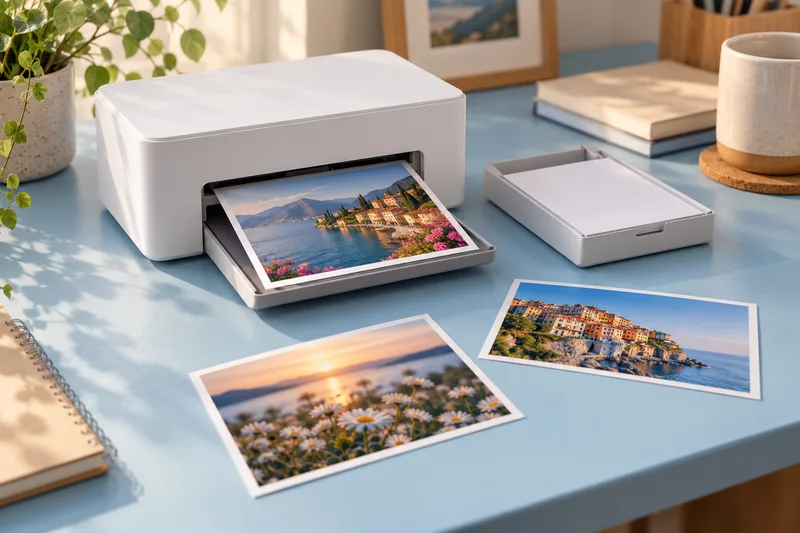
Canon SELPHY CP1500: a focused choice for small photo prints
I would choose a SELPHY CP1500 for convenient small photo prints when the supported formats and matched media packs suit the job.
Read the guide →Home photo printing: paper, borderless sizes and color handling
Start with a photo-capable printer and a supported paper-and-size combination. Then check the crop and color settings before judging quality. A glossy surface, a…
Read the guide →