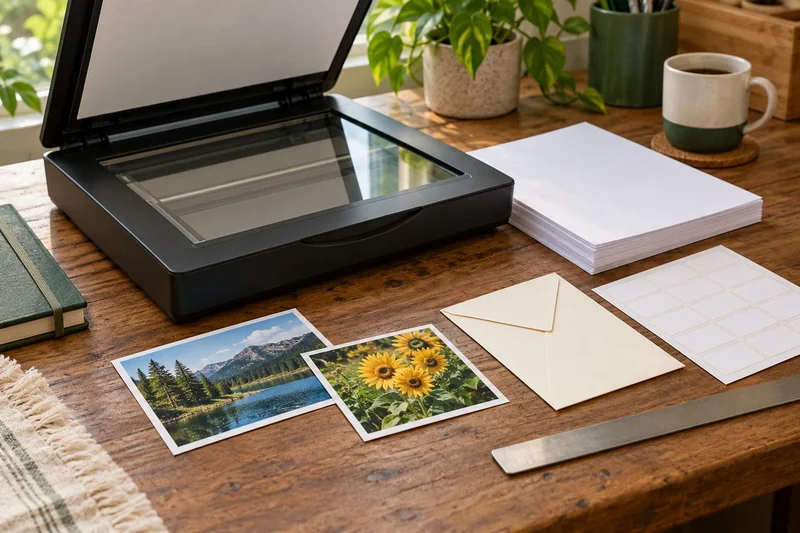
Windows protected print mode is a security-focused change to the print path. I would check model compatibility, scanning and specialised features before enabling it on a computer used for important jobs. Do not treat it as a harmless queue refresh or switch it off reflexively when an old driver disappears.
On this page
Our recommendation
I support testing the protected path with a clear acceptance checklist. I would resolve a documented compatibility gap through official support or administration, rather than recommend weakening the setting as a generic troubleshooting step.
Understand the migration consequence
Microsoft says the mode exclusively uses Windows Ready Print. Enabling it removes printers using third-party drivers and those drivers cannot be used while the mode is active. Compatible devices may need to be added again. Some multifunction scanners are not available through the protected path even when printing is supported.
Prepare a list of queues, connection methods and essential features before the change. Include software printers used for document workflows, not only physical devices. On a managed system, the setting may be controlled by policy, so the correct next step is an administrator review.
Use a small acceptance set
Choose a representative ordinary document, duplex proof, custom-media job and a scan if relevant. Test the current setup and retain the results. After migration, repeat the same jobs, noting the queue and any supported print application used to expose additional features.
If one feature fails, identify whether it is absent from the device, unavailable in that print path or simply configured differently. A basic print success is not a complete migration test. Keep business-critical work on a verified route while the specific issue is investigated.
Printing succeeds, scanning does not
A home-office all-in-one prints the two-page test after being added again, but the feeder scan is unavailable. Record that as a scan-path failure and check the model’s scan certification and supported app. Repeatedly reinstalling the print queue does not establish scanner support.
Before you act
- Inventory physical and software printers.
- Verify scan support independently.
- Repeat the same acceptance jobs after migration.
Use the Print-job workbook to apply the guide to your own setup.
Keep exploring
- Compare copy, scan and print to locate an all-in-one fault
- USB printing works but scanning fails: check the separate workflow
Sources and research notes
Research checked on 21 October 2026. Product specifications are manufacturer statements; examples and buying judgements are our analysis. No hands-on product test is implied.
Build on what you just learned
Your next useful step.
Separate the file, computer, network and device.
Windows printer drivers in 2026: what changed and what still works
Do not replace a working printer just because you read that Windows is ending legacy printer-driver servicing.
Read the guide →
A modern printer queue lost options: check the supported print app
When basic printing works but a device-specific option is missing, compare the queue, application and supported Print Support App before reinstalling…
Read the guide →