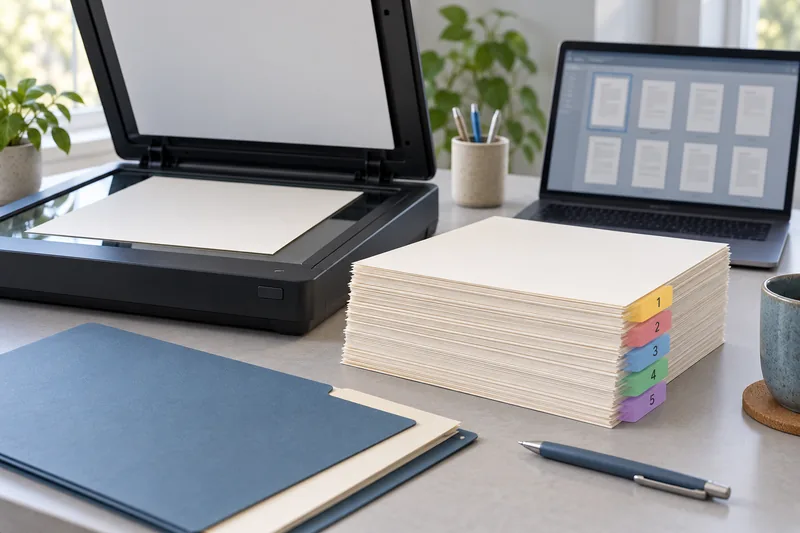
Use a documented local USB or local-network print route when the file does not need a cloud service. I would download the document to an appropriate local location, open it in a trusted viewer and select the verified physical queue. “Wireless” does not by itself mean “cloud”, and “local” still needs a correctly configured device.
On this page
Our recommendation
I favour the simplest documented route that meets the job and the organisation’s requirements. Use remote printing deliberately when it adds value, with a clear understanding of where the file is processed.
Map where the document goes
Separate the file’s storage location, the application opening it and the route to the printer. A local PDF sent through a remote-print feature can still involve a service. Conversely, a supported Wi-Fi Direct or local-network path can send a job without uploading it to a document-conversion website.
Check the exact printer’s account and service requirements. Do not promise that unplugging the internet makes every model function offline. Some enrolments or remote features have additional conditions, and a managed office may require an approved print service.
Test with harmless content first
Use a simple non-confidential proof to verify the queue, paper size and output location. Check that you did not select “save to cloud”, email-to-print or a similarly named remote destination. Keep the print settings record so the same route can be used again.
For shared devices, collect the pages promptly and use supported release controls where appropriate. Check local queues and the printer’s documented job-retention behaviour. Avoid uploading a sensitive document to an unknown “free PDF repair” site merely because the first viewer failed to print it.
A route check
A laptop opens a downloaded PDF, sends it to a verified USB queue and produces the one-page test. Record that route separately from a manufacturer app’s remote-print feature. If the PDF fails later, compare it with another local file before moving the document into a cloud conversion service.
Before you act
- Identify storage, viewer and print route separately.
- Test the physical output location with harmless content.
- Avoid unnecessary third-party conversion uploads.
Use the Print-job workbook to apply the guide to your own setup.
Keep exploring
- USB printer setup: ports, cables and the right printer instance
- Use a printer’s internal page to separate device and computer faults
Sources and research notes
Research checked on 21 October 2026. Product specifications are manufacturer statements; examples and buying judgements are our analysis. No hands-on product test is implied.
Build on what you just learned
Your next useful step.
Separate the file, computer, network and device.
Windows printer drivers in 2026: what changed and what still works
Do not replace a working printer just because you read that Windows is ending legacy printer-driver servicing.
Read the guide →
Before enabling Windows protected print mode, test the workflows you need
Windows protected print mode is a security-focused change to the print path.
Read the guide →