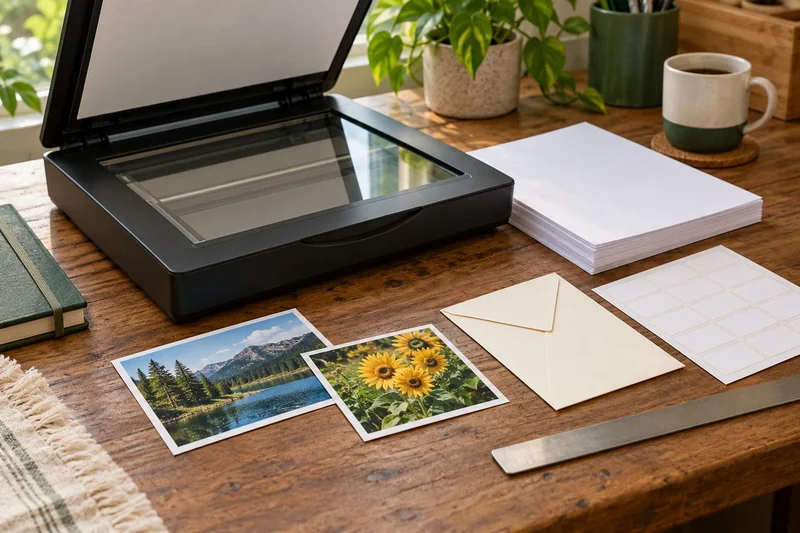
I would use the normal local network for a shared home printer and Wi-Fi Direct for a supported temporary direct connection when a router is unavailable. The names sound similar, but joining the printer’s direct network is not the same as adding it to the household network.
On this page
Our recommendation
For everyday multi-device use I prefer a stable local-network setup. Use Direct for a defined supported task and keep the two queue identities clear.
Identify which network the device joined
HP’s Wi-Fi Direct guidance describes direct wireless printing without a router or internet connection on supported devices. Check the exact model and client instructions. A cloud account or subscription requirement can be a separate condition; a local radio link does not automatically remove it.
Write down the printer’s direct network name privately and distinguish it from the home SSID. After connecting, check whether the computer or phone still has the internet route needed for the rest of the task. A device switching networks can explain why printing starts while a download or shared folder stops.
Make the intended route repeatable
For a shared printer, verify that the client and printer are on an appropriate local network with discovery allowed. For Direct, follow the maker’s authentication instructions and avoid making the connection open merely for convenience. Keep network passwords out of screenshots and public support posts.
Test printing and scanning separately. If a direct print succeeds, that isolates one route; it does not prove the home network is correctly configured. Return the client to its normal network after the temporary job and note which queue was used.
A temporary-location job
At a venue without a suitable router, a supported laptop-to-printer Direct connection may handle a local PDF. Download the file beforehand and test the print route. Back at home, reconnect the laptop to the household network and choose the normal shared queue rather than assuming the temporary Direct queue is the same one.
Before you act
- Distinguish the printer’s Direct SSID from the home network.
- Check account requirements separately from the radio link.
- Return to the normal network after temporary use.
Use the Print-job workbook to apply the guide to your own setup.
Keep exploring
- Wi-Fi printer setup: network, band and discovery checks
- Why a printer on guest Wi-Fi may be invisible to your device
Sources and research notes
Research checked on 21 October 2026. Product specifications are manufacturer statements; examples and buying judgements are our analysis. No hands-on product test is implied.
Build on what you just learned
Your next useful step.
Separate the file, computer, network and device.
Windows printer drivers in 2026: what changed and what still works
Do not replace a working printer just because you read that Windows is ending legacy printer-driver servicing.
Read the guide →Before enabling Windows protected print mode, test the workflows you need
Windows protected print mode is a security-focused change to the print path.
Read the guide →