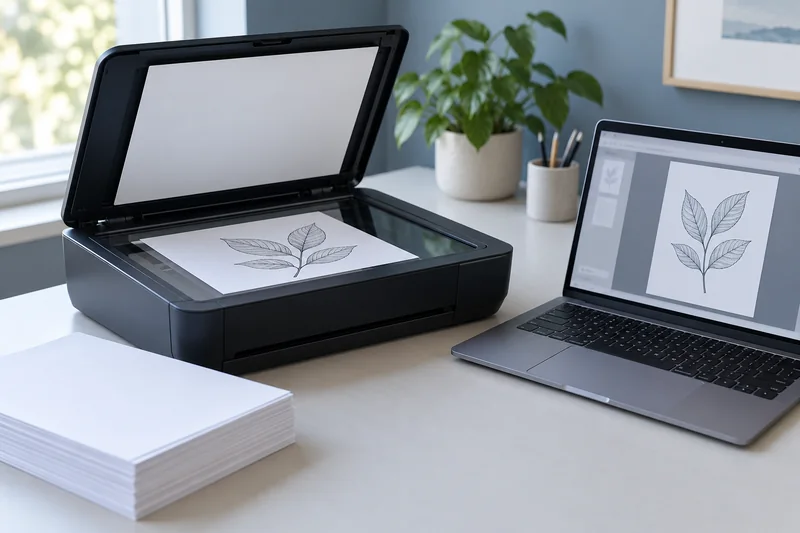
Answer: Printing and scanning use different software paths. Confirm the scanner’s exact connection and supported application rather than treating a successful print as proof that scanning is configured.
On this page
Print Use Lab editorial project · Updated October 21, 2026 · Original decision framework and illustrative example. No physical product measurement or hands-on benchmark is claimed.
Why the distinction matters
An all-in-one may appear as a print queue while its scan function needs a separate supported interface or application. USB hubs, cable issues and permissions can affect discovery, but do not change all of them at once. Start with the manufacturer’s setup route for the exact operating system and preserve any working print queue while investigating the scan path.
A practical sequence
- Record the printer model, OS version, USB route and scan application.
- Check that the named model supports scanning through that connection and application.
- Use the documented scan setup and test a non-sensitive plain page.
- Compare the application’s error with the manual before reinstalling or removing a working queue.
Decision record
| Check | What it means | What to verify |
|---|---|---|
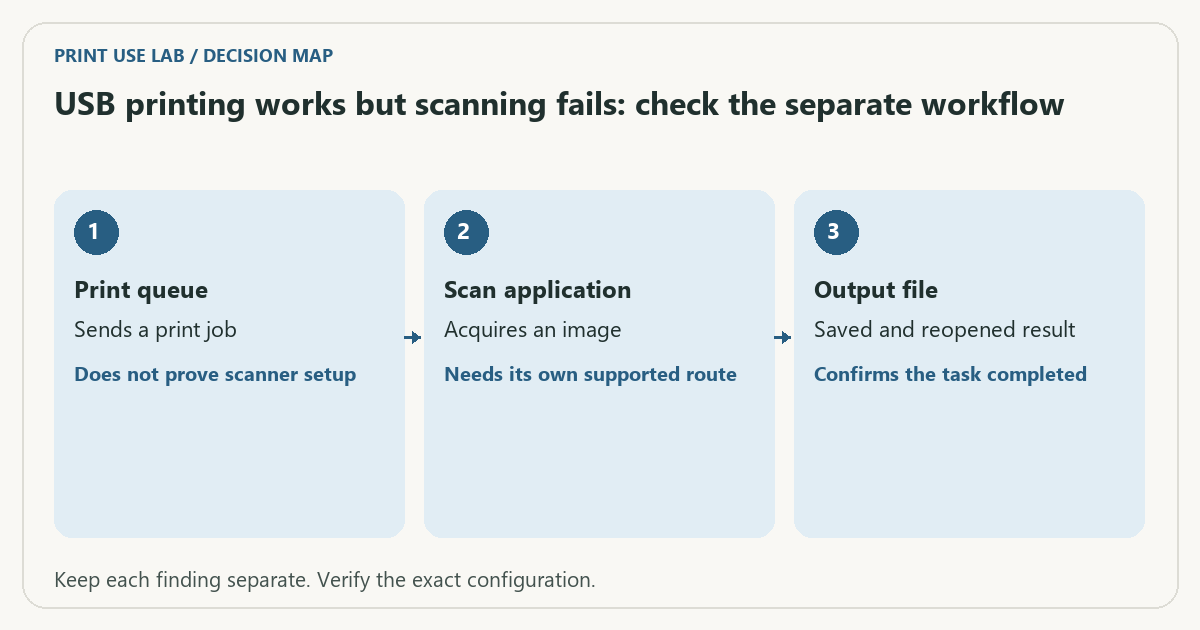
| Print queue | Sends a print job | Does not prove scanner setup |
| Scan application | Acquires an image | Needs its own supported route |
| Output file | Saved and reopened result | Confirms the task completed |
Worked example
In a hypothetical setup, a generic driver creates a working print queue but the chosen scan application cannot see the device. The next useful check is the model’s supported scanner setup for that OS, not repeated test printing or replacing the ink.
Verify the result
Save the resulting scan locally and reopen it to confirm page content. Avoid uploading a private document merely to test discovery. Keep scan capability and OCR capability as separate findings.
Download the editable CSV worksheet · Print-job workbook
Question and answer
Does USB support imply mobile-device USB scanning? No. Check the named host platform, application and connection support. A desktop USB specification does not establish mobile behavior.
Sources and scope
- Microsoft: printer connection and printing problems — Windows troubleshooting; available dialogs vary with Windows and driver version.
- Apple: solve printing problems on Mac — Mac queue and printing troubleshooting. Avoid changing other users’ jobs without their agreement.
- Epson: ET-2850 user guide — Use the matching model and regional manual for loading, maintenance and scanning details.
The decision sequence, diagrams, worksheet and worked case are our editorial work. AI assisted research, drafting and implementation. Official references support the named technical distinctions; examples do not establish real product performance.
Continue the task
- USB printer setup: ports, cables and the right printer instance
- Why a printer on guest Wi-Fi may be invisible to your device
- Browse the complete resource library
Build on what you just learned
Your next useful step.
Capture every page, then verify the result.
Mopria printing and scanning: verify the exact function before buying
Check printing and scanning as separate functions in the certified-product information and the manufacturer’s current support material.
Read the guide →ADF vs duplex ADF: separate printing from two-sided scanning
Short answer: An automatic document feeder does not automatically scan both sides. Automatic print duplex is a separate feature. Confirm two-sided scanning for the…
Read the guide →