Answer: Compare the document page count, preview and requested range with the physical output. A trailing blank page can be part of the document or job settings rather than a feed fault.
On this page
Print Use Lab editorial project · Updated October 21, 2026 · Original decision framework and illustrative example. No physical product measurement or hands-on benchmark is claimed.
Why the distinction matters
Blank output can result from an intentional blank page, booklet padding, a section break, a selected range or the device path. Separate an extra sheet from a blank reverse on an otherwise correct duplex job. Keep the original file and record the requested copies. Cancel only your own identified test job when troubleshooting a shared queue.
A practical sequence
- Read the source document’s actual page count and inspect the final pages.
- Check preview, page range, copies and any booklet or separator options.
- Print a short known range once through the intended queue.
- Compare expected page images and sheets with the result before investigating the feed mechanism.
Decision record
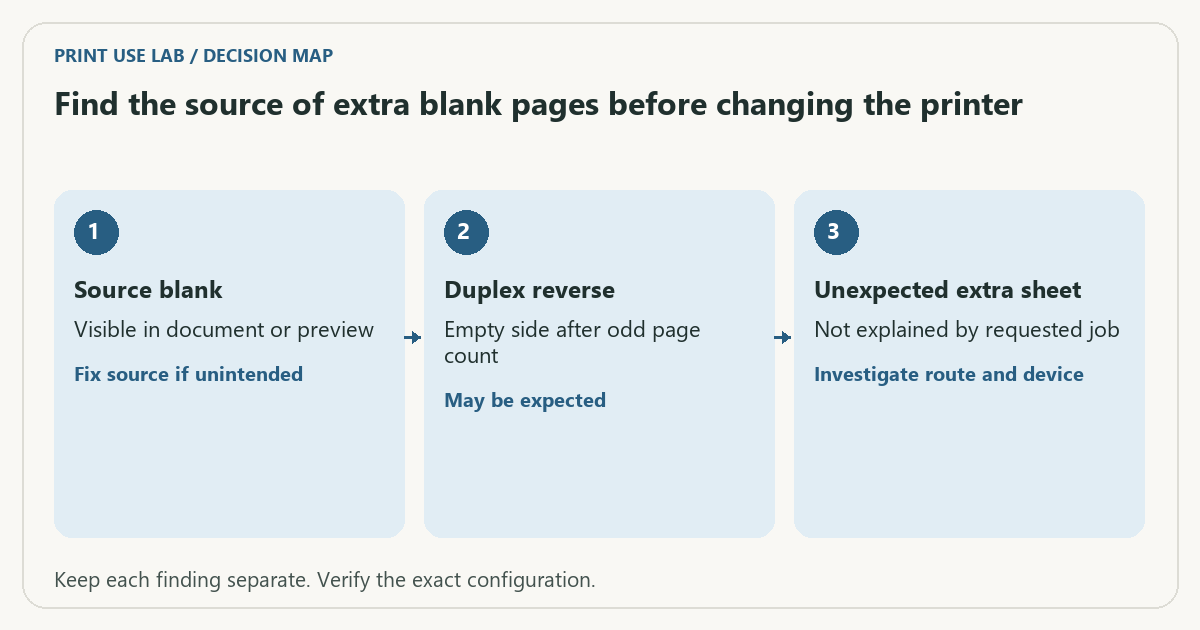
| Check | What it means | What to verify |
|---|---|---|
| Source blank | Visible in document or preview | Fix source if unintended |
| Duplex reverse | Empty side after odd page count | May be expected |
| Unexpected extra sheet | Not explained by requested job | Investigate route and device |
Worked example
A hypothetical seven-page document printed duplex needs four physical sheets, with one unused reverse if no extra content is added. That empty side is different from an unexplained fifth sheet. Counting sheets alone can make a normal result look faulty.
Verify the result
If the queue is stuck, identify the exact job and owner before canceling. Repeatedly clicking Print can create duplicates that emerge after the blockage clears. Verify one new job before resuming the batch.
Download the editable CSV worksheet · Print-job workbook
Question and answer
Should I delete every job to clear a shared queue? Coordinate with the other users and use the OS’s documented procedure. Do not discard unrelated work as a diagnostic shortcut.
Sources and scope
- Adobe Acrobat: page sizing for print — Distinguishes scaling modes. Printer margins and supported media remain model-specific.
- Microsoft: printer connection and printing problems — Windows troubleshooting; available dialogs vary with Windows and driver version.
- Apple: solve printing problems on Mac — Mac queue and printing troubleshooting. Avoid changing other users’ jobs without their agreement.
The decision sequence, diagrams, worksheet and worked case are our editorial work. AI assisted research, drafting and implementation. Official references support the named technical distinctions; examples do not establish real product performance.
Continue the task
- Print queue stuck: recover one job at a time
- Keep a reusable print-job record for settings that worked
- Browse the complete resource library
Build on what you just learned
Your next useful step.
Separate the file, computer, network and device.
Windows printer drivers in 2026: what changed and what still works
Do not replace a working printer just because you read that Windows is ending legacy printer-driver servicing.
Read the guide →
Before enabling Windows protected print mode, test the workflows you need
Windows protected print mode is a security-focused change to the print path.
Read the guide →