Answer: Compare an internal printer page with a simple computer print. The two checks travel through different parts of the workflow and can narrow where the fault begins.
On this page
Print Use Lab editorial project · Updated October 21, 2026 · Original decision framework and illustrative example. No physical product measurement or hands-on benchmark is claimed.
Why the distinction matters
An internal status or nozzle page is generated by the device using the procedure in its own manual. A computer print also depends on the application, queue, driver and connection. Keep the paper and supported settings constant. A successful internal page does not prove that Wi-Fi, the scanner or a particular PDF works. It establishes a smaller useful fact: the device produced that page under those conditions.
A practical sequence
- Use the exact model manual to find the internal report or nozzle-check procedure.
- Print it on supported plain paper and record whether it feeds and marks the sheet.
- Send one simple document from the intended computer queue. Confirm its queue name and destination.
- Compare the results before reinstalling software or running maintenance.
Decision record
| Check | What it means | What to verify |
|---|---|---|
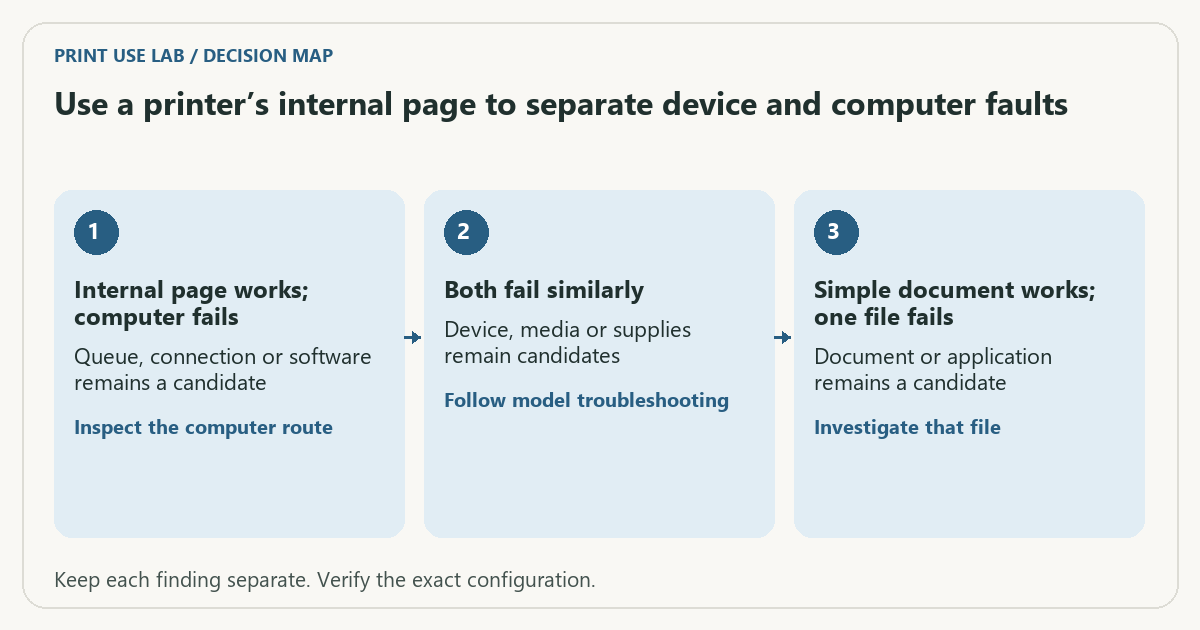
| Internal page works; computer fails | Queue, connection or software remains a candidate | Inspect the computer route |
| Both fail similarly | Device, media or supplies remain candidates | Follow model troubleshooting |
| Simple document works; one file fails | Document or application remains a candidate | Investigate that file |
Worked example
In a hypothetical case, the printer produces its internal report but a laptop job remains pending. Replacing ink would not address the observed queue failure. If another simple file from that same laptop succeeds, the investigation narrows again to the first document or its application settings.
Verify the result
Record the evidence before making changes. These observations narrow possibilities rather than identify a component with certainty. Use the model’s maintenance sequence only when its output and manual justify it.
Download the editable CSV worksheet · Print-job workbook
Question and answer
Does a successful internal page prove the printer is fully working? No. It does not test every media path, duplex unit, network route or scan function.
Sources and scope
- Microsoft: printer connection and printing problems — Windows troubleshooting; available dialogs vary with Windows and driver version.
- Epson: ET-2850 user guide — Use the matching model and regional manual for loading, maintenance and scanning details.
The decision sequence, diagrams, worksheet and worked case are our editorial work. AI assisted research, drafting and implementation. Official references support the named technical distinctions; examples do not establish real product performance.
Continue the task
- Printer offline: isolate the connection before reinstalling
- Choose long-edge or short-edge duplex with a two-page test
- Browse the complete resource library
Build on what you just learned
Your next useful step.
Separate the file, computer, network and device.
Windows printer drivers in 2026: what changed and what still works
Do not replace a working printer just because you read that Windows is ending legacy printer-driver servicing.
Read the guide →
Before enabling Windows protected print mode, test the workflows you need
Windows protected print mode is a security-focused change to the print path.
Read the guide →